Chapter 2: SBOM インポートとフォルダスキャン
CycloneDX / SPDX のインポート、フォルダスキャンによる依存検出
v2.0 の 2 つの入力方法
Dependa v2.0 では、以下の 2 つの方法で依存関係を読み込めます。
| 方法 | 説明 |
|---|---|
| SBOM インポート | 既存の SBOM ファイル(CycloneDX JSON / SPDX JSON)を直接インポートします。形式は自動判別されます。 |
| フォルダスキャン | プロジェクトフォルダを指定してスキャンし、依存定義ファイルから SBOM を生成します。 |
SBOM インポート
- 左側のナビゲーションから「SBOM / スキャン」画面を開きます。
- 「SBOM を開く」ボタンをクリックし、SBOM ファイルを選択します。
- Dependa が CycloneDX と SPDX を自動判別し、インポートします。
- インポート完了後、レビュー対象のパッケージ一覧が表示されます。
対応 SBOM 形式: CycloneDX 1.2〜1.6 JSON および SPDX 2.2〜2.3 JSON。形式は自動検出されるため、手動で指定する必要はありません。
フォルダスキャンの実行方法
- 左側のナビゲーションから「SBOM / スキャン」画面を開きます。
- 「フォルダスキャン」タブを選択します。
- スキャン対象のプロジェクトフォルダのパスを入力するか、「フォルダを選択」ボタンでフォルダを指定します。
- 「スキャン」ボタンをクリックすると、分析が開始されます。スキャン中はロックオーバーレイが表示され、進捗バーで状況を確認できます。
- スキャンが完了すると、結果がサマリカードとデータグリッドで表示されます。
対応エコシステムと対応ファイル
| エコシステム | 対応ファイル | プラン |
|---|---|---|
| Python | requirements.txt | Free |
| Python | pyproject.toml | Free |
| Python | poetry.lock | Free |
| Python | uv.lock | Free |
| Node.js | package.json | Free |
| Node.js | package-lock.json | Free |
| SBOM | CycloneDX JSON(.cdx.json / .json) | Free |
| SBOM | SPDX JSON(.spdx.json / .json) | Free |
分析結果の見方
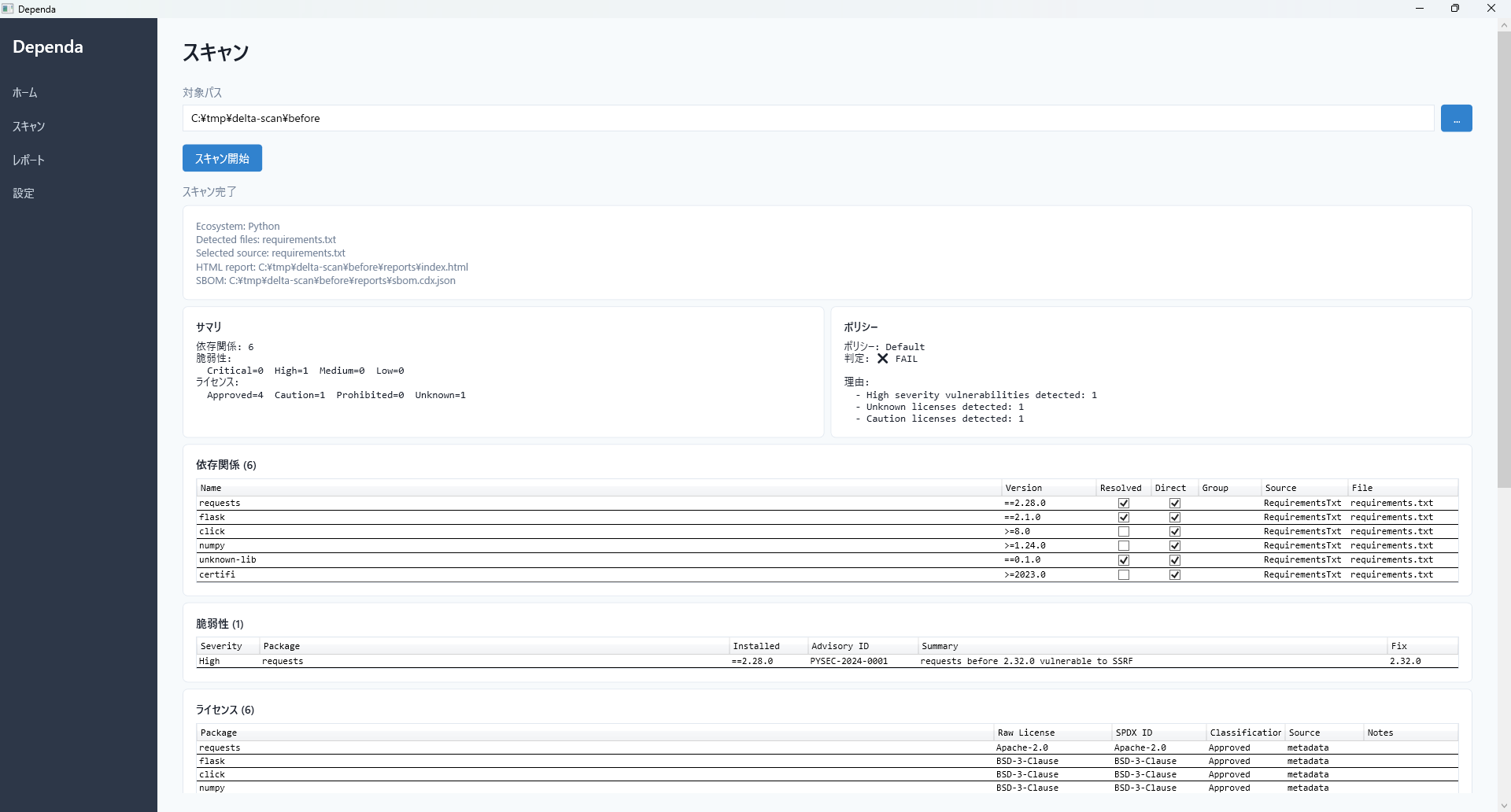
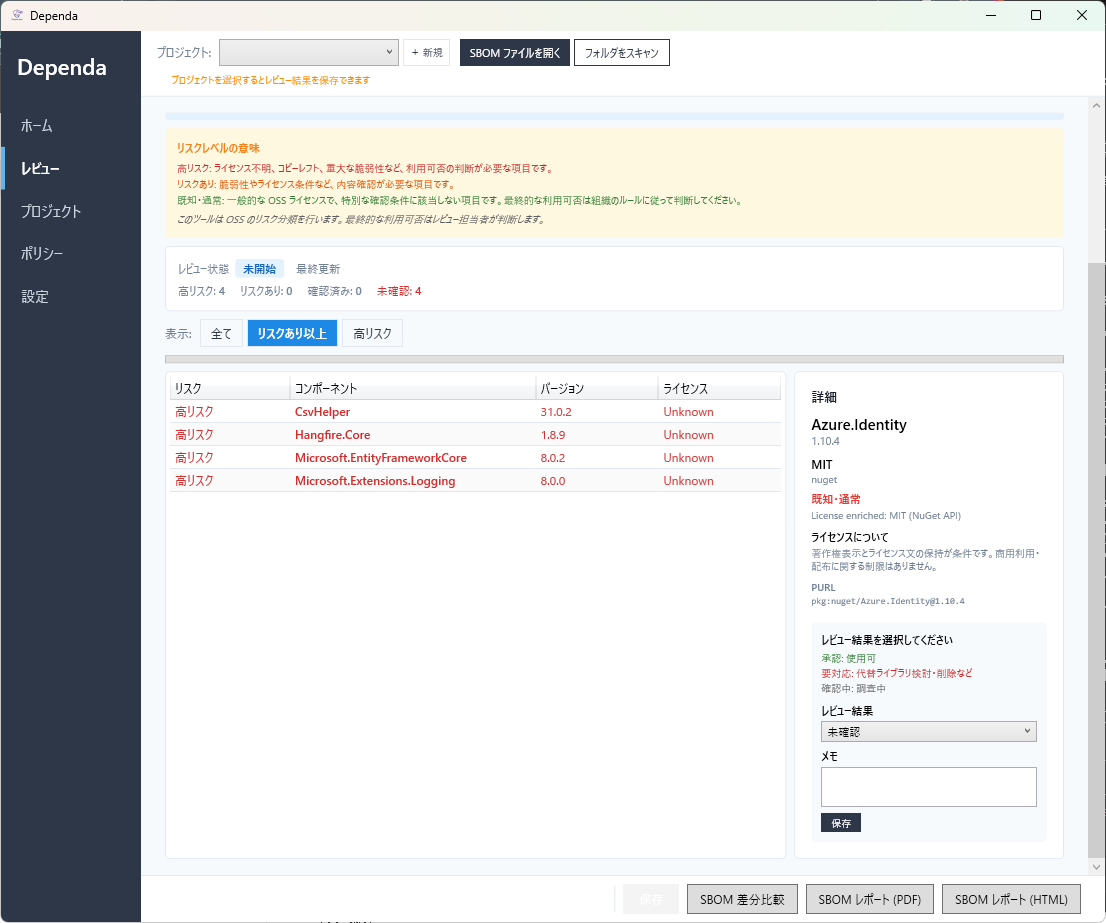
サマリカード
スキャン完了後、画面上部に以下のサマリカードが表示されます。
| カード | 内容 |
|---|---|
| 依存ライブラリ数 | 検出された依存パッケージの総数です。 |
| リスク | リスクレベル別の件数です(High Risk / Risk / Known-Normal)。 |
| 脆弱性数 | 既知の脆弱性が検出された件数です。重大度ごとの内訳も表示されます。 |
| ライセンス数 | 検出されたライセンスの種類数です。分類ごとの内訳も表示されます。 |
| レビューステータス | レビューワークフローの現在のステータスが表示されます。 |
データグリッド
サマリカードの下に、データグリッド(表)が表示されます。フィルターを適用すると、条件に一致する行がハイライト表示されます。
1. 依存ライブラリ一覧
検出されたすべての依存パッケージの名前、バージョン、エコシステム、ライセンス、リスクレベルが表示されます。
2. 脆弱性一覧
検出された脆弱性の ID(CVE 番号など)、影響するパッケージ、重大度(Critical / High / Medium / Low)、説明が表示されます。
3. ライセンス一覧
各パッケージのライセンス SPDX ID と、そのリスク分類(High Risk / Risk / Known-Normal / Unknown)が表示されます。
High Risk のアイテムがある場合は、リスク分析の詳細を確認し、推奨アクションに従って対処してください。
Chapter 2: SBOM Import & Folder Scan
CycloneDX / SPDX auto-detect import, folder scan for dependency detection
Two Input Methods in v2.0
Dependa v2.0 provides two ways to load dependencies:
| Method | Description |
|---|---|
| SBOM Import | Directly import an existing SBOM file (CycloneDX JSON / SPDX JSON). Format is auto-detected. |
| Folder Scan | Specify a project folder to scan and generate an SBOM from dependency definition files. |
SBOM Import
- Open the "SBOM / Scan" screen from the navigation bar on the left.
- Click "Open SBOM" and select your SBOM file.
- Dependa auto-detects CycloneDX vs SPDX format and imports it.
- After import, the list of packages for review is displayed.
Supported SBOM formats: CycloneDX 1.2–1.6 JSON and SPDX 2.2–2.3 JSON. Format is auto-detected; no manual selection is needed.
How to Run a Folder Scan
- Open the "SBOM / Scan" screen from the navigation bar on the left.
- Select the "Folder Scan" tab.
- Enter the path to your project folder or click "Select Folder" to browse.
- Click the "Scan" button to start the analysis. A scan lock overlay is displayed during scanning with a progress bar showing status.
- Once complete, results are displayed as summary cards and data grids.
Supported Ecosystems and Files
| Ecosystem | Supported Files | Plan |
|---|---|---|
| Python | requirements.txt | Free |
| Python | pyproject.toml | Free |
| Python | poetry.lock | Free |
| Python | uv.lock | Free |
| Node.js | package.json | Free |
| Node.js | package-lock.json | Free |
| SBOM | CycloneDX JSON (.cdx.json / .json) | Free |
| SBOM | SPDX JSON (.spdx.json / .json) | Free |
Understanding Analysis Results
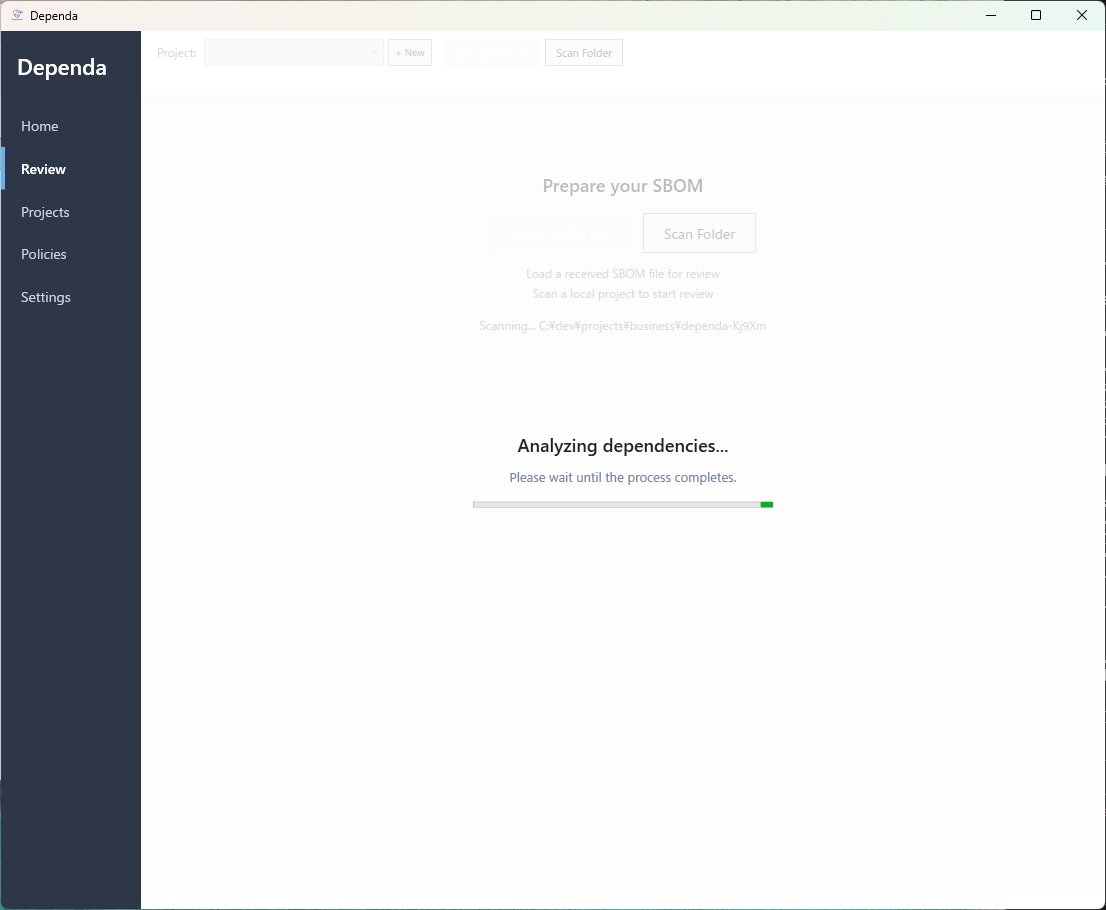
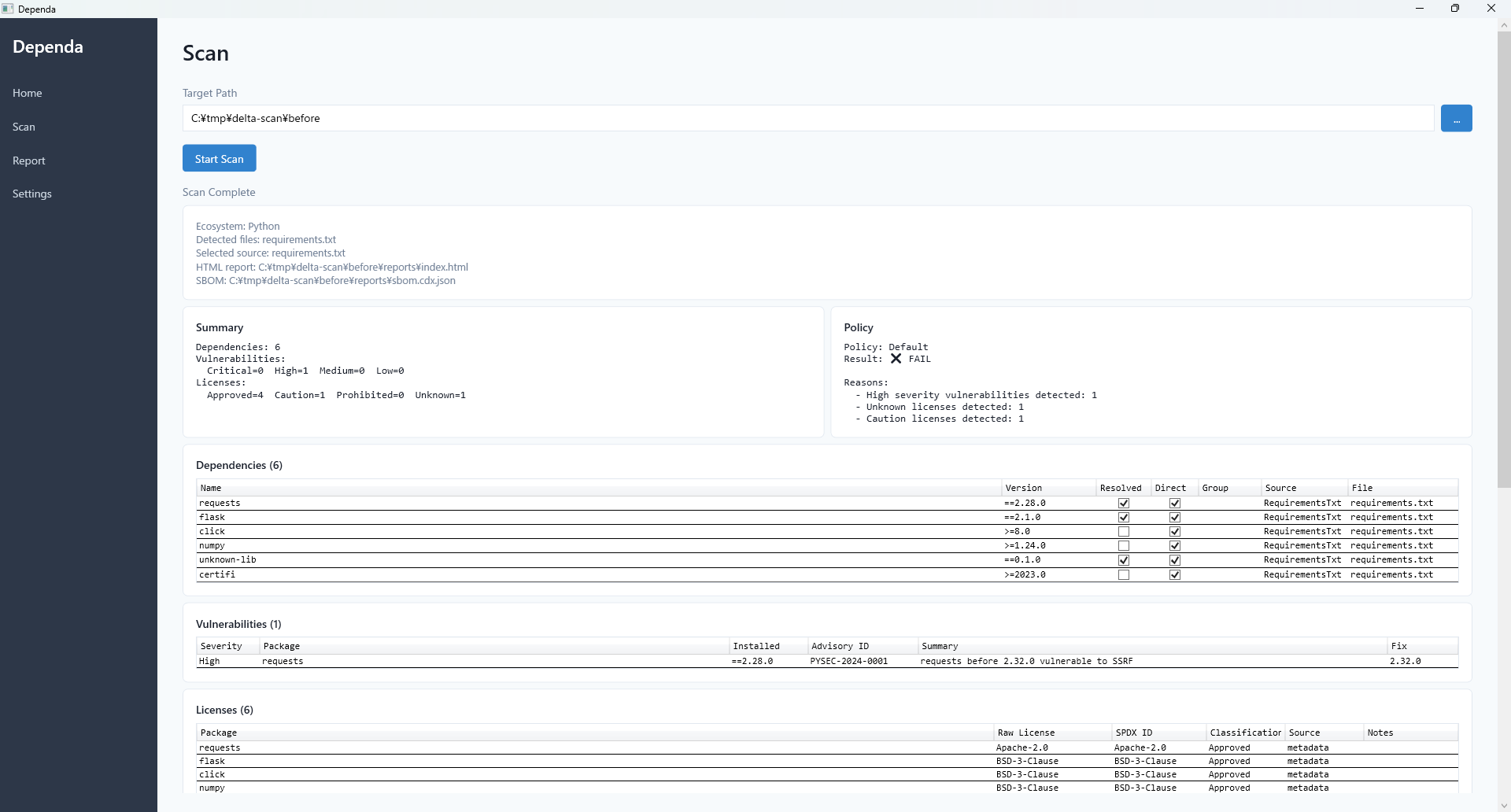
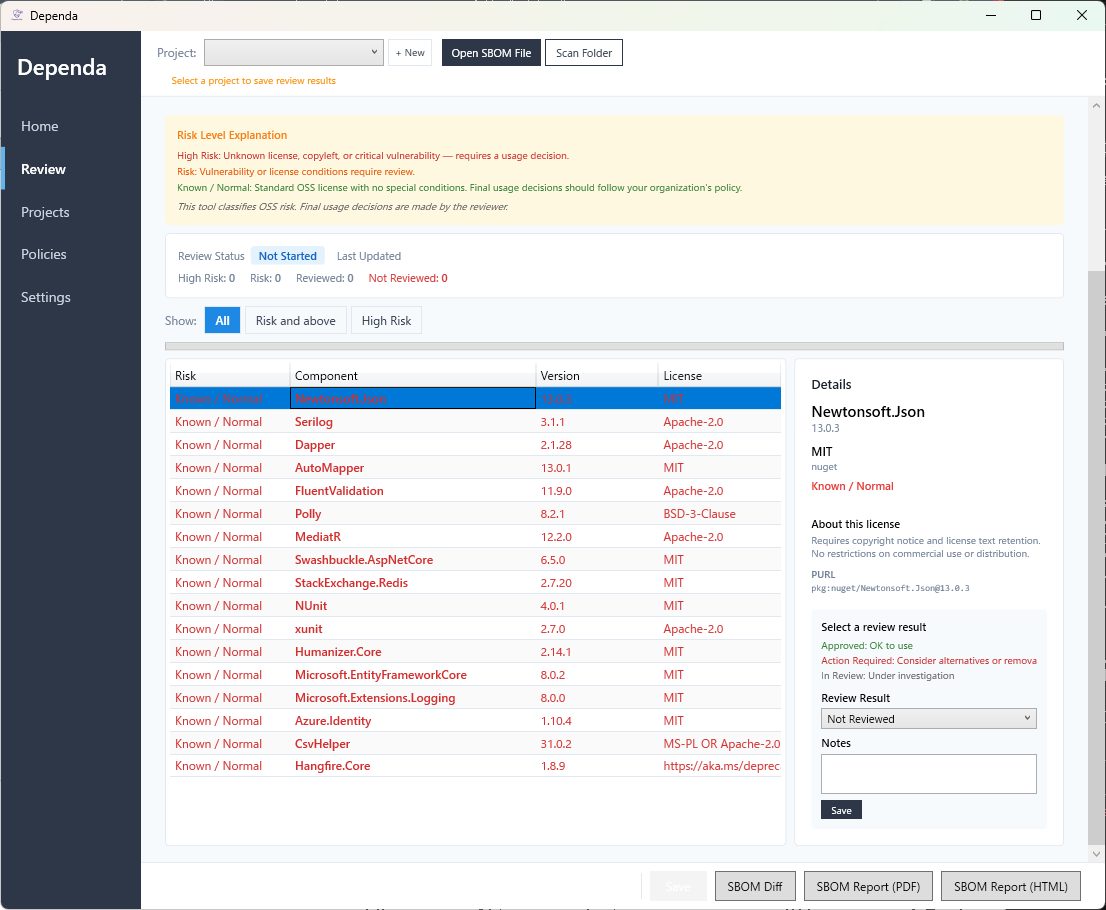
Summary Cards
After a scan completes, summary cards are displayed at the top of the screen:
| Card | Description |
|---|---|
| Dependencies | Total number of detected dependency packages. |
| Risk | Count by risk level (High Risk / Risk / Known-Normal). |
| Vulnerabilities | Number of known vulnerabilities found, broken down by severity. |
| Licenses | Number of license types detected, broken down by classification. |
| Review Status | Current review workflow status. |
Data Grids
Below the summary cards, data grids (tables) are displayed. When filters are applied, matching rows are highlighted.
1. Dependencies List
Shows all detected dependency packages with their name, version, ecosystem, license, and risk level.
2. Vulnerabilities List
Shows detected vulnerabilities with their ID (e.g., CVE number), affected package, severity (Critical / High / Medium / Low), and description.
3. Licenses List
Shows each package's SPDX license ID and its risk classification (High Risk / Risk / Known-Normal / Unknown).
If High Risk items are found, review the risk analysis details and follow the recommended actions.